-
WHMCS integration guide
Integrate your WHMCS page with LiveChat and gain new leads and customers. Using this integration, you can: Install LiveChat on your WHMCS page Add chat transcripts as Clients’ Notes in WHMCS Installing LiveChat on your WHMCS page Follow these steps to install LiveChat on your WHMCS page: Login to your WHMCS admin panel. Download the LiveChat addon module...
-
Link LiveChat with other services using Zapier
Using Zapier, you can connect LiveChat to a number of different services to store chat transcripts, create new contacts in your CRM and much more. Creating your first Zap For the purpose of this tutorial, we will create an example Zap that will add a new Google Contact entry for each person that started a chat with you. Start off by...
-
Improve your email marketing with HubSpot integration
Reach your prospective visitors with your newsletters using the HubSpot integration. Visitors can sign up to your newsletters at the beginning of each chat, steadily growing your audience. Installation To enable the HubSpot integration, use these guidelines: Go to the LiveChat integration page and click on Install. Select Authorize...
-
More newsletter subscribers with GetResponse
Gain new audience for your newsletters and broaden their reach using the GetResponse integration. Easily gain new leads and simplify your follow-up activities! Installation To get started with this integration, use the following instructions: Go to the GetResponse integration page and click on Install application. Proceed by clicking...
-
Remotely access desktops with TeamViewer integration
Gain access to your visitors’ desktops and control them remotely using the TeamViewer integration to resolve support cases quickly and efficiently. If you want to use the TeamViewer application commercially, be sure to purchase a TeamViewer license. Installation To install the TeamViewer integration, follow the steps below:...
-
Get more leads with iContact integration
Significantly boost your newsletters with new leads using the iContact integration. It will allow you to increase your newsletter audience by providing a newsletter sign up option in the pre-chat survey. Installation Follow the steps listed below to enable this integration: Go to the iContact integration page and click on Install application.
-
Turning on the Segment.io integration
Installing LiveChat with Segment.io is incredibly easy. When the installation is complete, your website visitors and your mobile application users will be able to chat with you via LiveChat. Installation To get started with Segment.io, follow the steps below: Access your Segment.io and edit the LiveChat settings. Go to the Install section and...
-
Engage prospective visitors using the Qualaroo integration
Strike a conversation with qualified leads using the Qualaroo integration. Offer LiveChat as one of the survey options and engage potential customers. Installation Follow the steps bellow to setup the integration: Log in to your Qualaroo account and click on Create new. Select Create a Nudge or Survey to proceed. Click on...
-
Getting visitor information using FullContact integration
Get additional information on your visitors using the FullContact integration. It gathers valuable data like contact information and places it in the chat window. Installation To install this integration, follow these steps: Go to the FullContact integration page and click on Install application. Proceed with the installation...
-
Integrate Prestashop with LiveChat
Chat with your store visitors using LiveChat. Identify prospective leads and convert them into paying customers. Installation To place a live chat function on your store’s website, follow these steps: Login to your Prestashop store and select Modules Choose Other Modules and click on Configure in the HTMLbox module section Go to the Install...
-
Installing LiveChat on your ekmPowershop site
You can create a completely new channel of communication with your online visitors by installing LiveChat on your website. Do this to chat with your visitors and convert them into customers. Installation To place a live chat function on your store’s website, please follow these steps: Login in to the administrative panel of your...
-
Integrating live chat with your X-Cart store
This short tutorial will guide you through the process of installing LiveChat on your X-Cart store. Start chatting with visitors and convert them into customers within minutes Installation To place a live chat function on your X-Cart store, follow the steps below: Login to your X-Cart store and go to the Look & Feel section Proceed...
-
Place a live chat function in your AmeriCommerce store
Start chatting with your online visitors by installing live chat on you AmeriCommerce site. Follow this short guide to gain new leads and convert them into sales. Installation Follow these steps to place a live chat function on your AmeriCommerce site: Start by logging in to your AmeriCommerce admin panel and select your active...
-
Integrate your live chat with 3dcart
This short integration tutorial will guide you through the process of placing a live chat function on your 3dcart store website. Start chatting with your store visitors and convert them into customer with just a few clicks! Installation To set up live chat on your 3dcart website, follow the instructions below: Login to your 3dcart store manager...
-
Use Campaign Monitor integration to gain new subscribers
Gain new newsletter subscribers using our Campaign Monitor integration. It allows your visitors to subscribe to your newsletters when filling out the pre-chat survey. Installation To install the Campaign Monitor integration, follow the steps found below: Go to the Campaign Monitor integration page and click on Install application...
-
Gain new subscribers using MailChimp integration
You can expand your newsletter subscribers list using our MailChimp integration. It will allow your visitors to signup for your newsletters when filling out the pre-chat survey. Installation To install the MailChimp integration, you need to follow the steps listed below: Go to the MailChimp integration page and click on Install application...
-
Log live chat data with Google Analytics
Using our Google Analytics integration, you can easily collect live chat related data and log it in on your Google Analytics account. This integration can collect the following information: use of automated greetings number of displayed pre-chat surveys the amount of chats you had how many post-chats surveys were displayed the number of after-hours...
-
Instant messenger live chat vs. dedicated chat software
This article will give you a good idea about the use of instant messenger based live chat solutions. During the course of the article, we will cover all the basic aspects related to a typical IM based live chat solution: installation, available features, how agents service clients using the solution and its security. Read on...
-
Dropbox integration tutorial
This helpful integration will allow you to share your Dropbox files with your visitors. If you tend to send some kind of materials or files to your visitors, you can save yourself a lot of time and send them straight from the chat window. Setting up To enable this function, go through the following steps: Go to the Dropbox integration page. Click on...
-
PrestaShop integration tutorial
You can easily instal a live chat feature if your are using PrestaShop. This will give you the opportunity to chat with your online visitors and turn them into customers. Installation To integrate your PrestaShop site with LiveChat, you need to follow the few, simple steps below: First, you need to log in to your PrestaShop admin account Go to Modules...
-
Zen Cart integration guide
If you are a Zen Cart website owner you can easily place a chat function on your site. This way, you will get access to all your online visitors and you would be able to chat with them. Setting up the integration In order to place a chat function on your Zen Cart site, you need to follow these steps: Download the LiveChat Zen Cart plugin Unpack all the...
-
CoreCommerce integration guide
Using this integration, you can add a live chat option to your CoreCommerce shop. This will allow your visitors and customers to contact you via live chat and give you a chance to increase your online sales. Setting up the integration To place a live chat on your shop’s site, you need to follow the steps below: Log in to your CoreCommerce shop...
-
Bigcommerce integration tutorial
You can combine your Bigcommerce shop with LiveChat in a few simple steps. This will let you chat with your online visitors and actively convert them into customers. Setting up To set up live chat on your Bigcommerce store, you need to follow these steps: Log in to your store control panel. Click on Apps and select Live Chat. Check Other Third Party...
-
Magento integration guide
You can easily add a live chat feature to your Magento-based web shop by following this guide. This will give your online visitors a chance to chat with you in real time straight from your shop. Installation To install LiveChat on your Magento site, you need to follow these few, simple steps: Download the LiveChat module for Magento Unpack it to your Magento...
-
SugarCRM integration guide
You can combine your live chat and SugarCRM using this integration. It will allow you to enhance your sales and follow-up activities. With this integration, you will be able to: Create new accounts and leads Edit existing entries and update them with chat history Grab contact information from information entered in pre-chat surveys Install this integration...
-
Highrise integration tutorial
Integrate your live chat with Highrise for an easy and effective way of handling your online contacts. This integration will make the following possible: Adding new and old contacts and deals with one click Gathering of contact information using the pre-chat survey data Forwarding chat transcripts directly to Highrise and assigning them to contacts...
-
Chat button guide
Chat buttons play an important role in chat generation. The better and more visible your chat button is, the more people will use it to start a chat. Follow the steps below to learn how to place a chat button on your site and make it attractive for your visitors. Creating a chat button Chat button creation is a two-step process. First, you need to decide how your...
-
Tips for beginners
Live chat operator types vary greatly in conducted tasks and positions they fill. There are support operators who help their clients. There are also sales operators, who try to convert visitors into clients. Finally, combinations of the two exist too. No matter what role you fill as a live chat agent, you can use this article as your go-to source of useful knowledge.
-
How to: Monitoring window
The monitoring window is used to gather useful information on your visitors and their activities on your site. A number of things can be tracked using the monitoring window and a few actions can be taken through it’s interface: Track information regarding your visitors Invite visitors to chat Supervise ongoing chats Gathering useful information and then...
-
How to: Chat window
The chat window facilitates the communication between your agents and your online visitors. Through the chat window, you will be able to do the following: Convert visitors into customers Handle enquiries and answer questions Provide customer support To conduct these activities properly, you will have to understand how the chat window works and how use its functions...
-
How to: LiveChat basics
This short tutorial will provide a reference point for anyone starting to work with LiveChat. Agents who just begin their experience with our solution will be able to find all the necessary information here. After going through this tutorial, beginner LiveChat users will be able to handle the application and understand the information it provides. Starting...
-
LiveChat for Volusion Guide
Volusion is one of the easiest to handle and user friendly e-commerce platform available on the market. You can easily place LiveChat on your Volusion-based shop. This will allow your visitors to contact you while they are shopping and resolve their inquiries within minutes. Installation To place LiveChat on your Volusion-based site, follow these steps:...
-
Canned responses for departments
If you have your live chat divided into groups and you are using canned responses, you can create department-specific responses for your operators. This way, they will be able to provide detailed information regarding their department with ease and speed. Creating a response To create a department-specific canned response, you need to follow a few...
-
Desk.com integration guide
By integrating your live chat with Desk.com, you will be able to move cases from chat to the help desk. After integrating, you will be one click away from creating a new Desk.com case. Desk.com integration offers the following benefits: creating tickets on the fly keeping the customer service communication in one place monitoring ticketing history from...
-
Salesforce integration tutorial
Our Salesforce integration will help your sales and support teams move any relevant chat data to Salesforce with a single click. This will keep your operators updated on previous communication with new and existing clients. Your agents will also have quick access to the Salesforce information in the chat window. Installation In order to install this...
-
Facebook button in chat window
Facebook button integration can boost your fan base building efforts by placing a Facebook ‘Like’ button in your chat window. It will allow your website visitors to ‘like’ your service and access your fan page. Imagine how fast your fan base can grow if every satisfied visitor could ‘like’ your fan page. Facebook button integration provides...
-
Facebook Connect integration
Being able to receive help from an operator as soon as possible is very important for your customers. Visitors who want to take care of something quickly might want to use a faster method of logging in to your live chat. Facebook Connect integration lets your visitors login quickly with their Facebook accounts. No need to fill any surveys, they can simply...
-
Join.me integration guide
You can easily integrate Join.me with your LiveChat license and get the benefit of both services combined. Thanks to this integration, you will be able to start screen sharing sessions with your visitors straight from the chat window with just one click. The set-up To enable this integration, go through the following steps: Log in to the Control panel an...
-
Placing a chat button in Zendesk
You can have your Zendesk visitors initiate chats directly from Zendesk. This way, you will be able to see who is on your Zendesk page and chat with those visitors. To make this possibile, go to Extensions in Zendesk settings. Afterwards, click on Add widget. From the list of available widgets select Global JavaScript widget. Copy your tracking code...
-
Zendesk integration tutorial
Combine your live chat with Zendesk to further enhance its support capabilities. This integration will make the following possible: Creating tickets on the fly during a chat with a visitor Forwarding offline messages as tickets to Zendesk Tracking your Zendesk visitors and placing live chat button on your support pages Displaying visitor data based on...
-
Getting the correct ZIP code
When setting up a LiveChat license you might find that the ZIP code you are providing is incorrect. An error message will be displayed informing you that the code is not valid. This error will appear whenever the ZIP code you provided doesn’t match the one on your credit card. If you try to use your local area code as the credit card ZIP code and...
-
Setting up an invoice for your company
When you make your payments or subscribe to LiveChat, you might want to have the company data on your invoice instead of you own name and address. Your company policy may require this or perhaps it is easier for your accounting department this way. To do that, you need to follow a few simple steps: Log in to the Billing info section Enter your...
-
Setting up a subscription
Signing up for a LiveChat license after a trial is very simple. All you need is a few minutes and a credit card. To setup or renew your LiveChat subscription, go to the Subscription section. Next, choose the plan you are interested in and select how many online agent seats you require. When you are done with the seats you have to select the billing cycle.
-
Choosing the right plan
LiveChat subscription is plan-based. When you go to the Subscription page you will notice that we have three payment plans available: Solo, Team and Enterprise. Different plans offer different features. The features available in each plan are closely related to the target size of the live chat implementations. One agent operations and small teams will sway...
-
Changing the Owner
The Owner has the most power amongst all the user groups. It is the only person capable of accessing the Subscription section which is required for subscribing and renewing your LiveChat license. Since there can be only one Owner at a time, you might want to switch your license ownership to another person. To do that, follow the steps below. Start by logging in...
-
No offline button after work hours
Sometimes, when the need for contact is very urgent, e.g. in case of product support, clients might get frustrated when they go to your site and find only the offline contact form. Ultimately, the best option would be to provide a 24/7 support. However, due to a number of various factors, this is not always possible. When you deal with a lot of...
-
Changing your agent title
There is a very easy way of changing the description of an agent. Follow the steps below and you will be able to give your operators any work title you wish: Start off by logging in to your Control panel and go to Agents. Select an agent and click on Edit in the upper right portion of the page. Type in the new Job title. Click on Save changes and you are...
-
Dividing live chat by group
Dividing your live chat by department can significantly shorten the time needed to reach the right agent. Your visitors will be able to get their answer as fast as possible without the need to be transferred to a different agent. Setup To divide your live chat into various departments, you need to follow a few simple steps. Let’s start with creating...
-
Setting up auto-away
nded Auto-away is a helpful feature that allows you to leave your desk without worrying about any unanswered chats. You are free to leave your LiveChat running and it will automatically switch to Away after a set period of time. Follow a few simple steps to enable this function on your Mac or Windows application. Setup for Mac To enable this function, you need...
-
Application statuses
Each LiveChat application has two different statuses. Each of them serves a specific purpose: Accept chats – you can track and receive chats from visitors Don’t accept chats – you won’t receive new chats from visitors, however, ongoing chats can be continued; additionally, you can still track visitors Make sure you always use correct...
-
Inside offline messages
Offline messages are a great tool that can extend your ability to keep in touch with your clients. When used correctly, they offer a way to reach you, even after working hours. Setting up To start, you need to set-up your offline messages form. You can do that in the After-hours section. You can either use the default survey or set up your own. When you are...
-
Staying online creates opportunities
The success of your live chat is closely related to your ability to stay online whenever clients might want to contact you. Even if you are not online all the time, there are a few simple things you can do to capitalize on your time investment or considerably increase your presence. Using multiple applications Using multiple LiveChat applications...
-
More chats with the Eye-catcher
atcher Your chat window can sometimes be omitted by visitors. The small Chat now button can get lost in all the bells and whistles already present on your website. If your slick, customized with CSS, chat window doesn’t catch the attention of your visitors, the eye-catcher is just the way to go. Be visible Tell your visitors that they’re...
-
Custom variables configuration
Having a set of information on each visitor at the beginning of every chat is valuable for every live chat agent. With such information, each chat can be handled faster and more efficiently. Custom variables can aid you in achieving this effect. They can be used to pass important visitor information at the beginning of every chat. You can pull names,...
-
Goals set-up and use
Our goals system offers you a possibility to measure your live chat’s effectiveness. You can see how many chats end with a desired effect, for example, a chat closing with a sale. There are a number of different situations you could utilize goals to your advantage. Read on and learn how to set them up and use them for your business. Setting up To start...
-
SSO Login to Zendesk using LiveChat integration
This short guide will show you how to use our Zendesk integration if you are logging using SSO. You need to be an administrator to enable SSO login for the Zendesk integration. If you don’t have administrative privileges yourself, please pass this tutorial to your admin. Setup Follow the steps below to complete the setup: Login...
-
LiveChat for multiple websites
You can put your live chat on many websites without any additional charges and monitor them from one application. To do this, follow the steps below: Go to the Groups section of the control panel Click on Add a group Enter name (you can use the website’s name), add operators responsible for that site and click on Add a group button Create groups...
-
LiveChat roles: Owner, Administrators and Agents
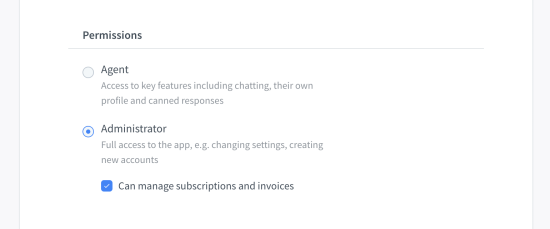
There are three roles in LiveChat licenses, each serving a different purpose. There is an Owner, Administrators and Agents. Owner The Owner is the person who created a LiveChat license. Think of them as someone in charge. Owners can affect each and every aspect of a license. They can add Administrators and Agents, change settings,...
-
Customize your chat window with CSS
You can spice up your chat window using custom CSS code. Here are some examples of possible customizations and instructions on how to achieve them. Placing the chat window on the bottom left of the page Wider chat window Chat window in the bottom right, closer to the center Rounded avatars in the chat window Custom chat window background Higher...
-
How to have more chats with customers
Your chat window can sometimes be omitted by visitors. The small Chat now button can get lost in all the bells and whistles already present on your website. If your slick, customized with CSS, chat window doesn’t catch the attention of your visitors, the eye-catcher is just the way to go. Be visible Tell your visitors that they’re...
-
Adding live chat to Facebook
Have you ever wanted to get a chance to directly speak with your Facebook fan page visitors? Now you can! LiveChat for Fan Pages will give you an additional channel of information streaming from Facebook. Setting up To get LiveChat for your fan page, please visit the app’s installation page. Afterwards, click on Add LiveChat to your page button.
-
Chat Surveys
Chat surveys is a helpful tool that allows you to learn more about people who visit your site. You can use that information to offer more personalized and precise service. Pre-chat survey This type of survey shows up at the beginning of each chat. Your visitors are asked to provide some basic information like name or email before the conversation start so your operators...
-
Dealing with confused or abusive visitors
There are a few ways to make sure that operators spend their time efficiently. One of such ways is the correct handling of abusive and confused visitors. Read on to see how to correctly deal with such cases. Offering chat to prospective visitors Most pages should have a live chat option available in a visible place. This isn’t however...
-
In-chat cooperation: transfers and supervision
LiveChat operators have a very unique opportunity to help one another when chatting with customers. They can use transfers and supervision to handle cases requiring more experience and/or knowledge. The very same tools can also be used to train new operators. All that without putting any customers on hold! Transfers Operators can transfer...
-
iPhone and iPad push notifications for LiveChat
Apple introduced their battery life saving, revolutionary notification mechanics in 2008. Instead of being constantly connected to the Internet and pulling data from it, they decided to have mobile devices receive data pushes only when required. LiveChat makes use of that to make sure you don’t miss any valuable visitors. Now...
-
LiveChat in the cloud
So you decided it was time to get back into the game, set your worn out phone line aside, and install a new chat system. Expectations are huge, since everybody’s talking about its impact on revenue and customer satisfaction. Your webmaster already placed it on your page, chats keep coming in. You definitely don’t want to miss any of them! Same feeling worldwide...
-
Setting up notifications for Windows app
Notifications can help you catch every lead possible and increase chances of contacting with your visitors. This guide will lead you through the process of setting up visual and sound notifications in your application. This is a Windows app version of the guide. For all your Mac app needs, please check out the Mac version of this article.
-
Improving chat quality
Customers are the best judges of the way you handle your business. If they are satisfied with your service, it means that you’re doing a good job. Agents must put special focus on chat etiquette and product knowledge because their answers will ultimately turn into customer satisfaction. Chat etiquette Try to approach every customer in a unique and interesting...
-
How to modify chat window language
Modifying language packs for your chat window is another step that leads towards deeper customization. Modification of the messages and notifications visible in the chat window opens up a lot of possibilities for creating the perfect chatting interface. Changing the language To change the language of your chat window, you need to log in to the...
-
Web, Desktop and Mobile applications
Having access to a wide range of applications, you might wonder which is the best for you. It all comes down to your specific needs and expectations. Read on to see which type of application is the best fit for you. Web application You can use this application from your favorite browser without having to install any additional files. It works...
-
Stay mobile with LiveChat
With LiveChat mobile apps, you don’t have to spend time in front of your computer and you won’t lose any leads. You can chat everywhere: in a car, at home or while shopping. The mobility will make earning new customers easy since you’re always there to respond! Available applications We have three different applications available. To download...
-
LiveChat security and data storage
Data transmission and storage security is imperative in the modern enterprise. That’s why we have taken all measures to keep all information appropriately protected. Our data centers, provided by Softlayer, are located in Texas, US. They are behind a number of security clearances, and there’s always a security guard on duty. Services provided...
-
Social media works with LiveChat
Nowadays, everyone has some kind of a social media account and uses it as an online alter-ego. These social media profiles are real goldmines in terms of useful information. LiveChat can help leverage that personal information to aid sales people in their day to day research and boost their conversion rates through the roof! LiveChat and Facebook...
-
Which chat window type to use
There are two types of LiveChat windows available: embedded and popup. Although both are used to contact with visitors, they do it a bit differently. Read on to see which chat window fits your website better. Embedded chat window This type of window is very similar to Facebook chat. It stays in one place on the screen and will follow the users when...
-
Using canned responses
To keep up with a large number of chats, you can utilize of canned responses. They are pre-made chunks of text that can be quickly entered in a conversation, saving you a lot of time. If you need to use a particular phrase often, canned responses is a great way to do so. To use a canned response, you need to type in its tag preceded by a hash (#) sign. The...
-
Setting up LiveChat on your website
Getting started with LiveChat is a simple process that doesn’t require much of your time. Follow the guidelines below to get it up and running within minutes. If you need help implementing or staffing your live chat, be sure to check out our Experts page. Installation To start off, you need to create a LiveChat license. After that you will...
-
Why should I set up chat greetings
Sending a personalized greeting is an easy and effective way of starting a chat with a visitor. Greetings can appear in your chat window with a customized message and your operator’s photo. This makes it really easy to connect with your online visitors. With greetings, you will: Get more chats – the more personalized and targeted your...
-
Chat window customization
You can use several different tools when trying to raise your brand awareness and one of those tools is the LiveChat window customization. By creating a customized look of your chat window you can make it an integral part of your website and the whole customer service process. It’s like entering an Ikea – you expect a blue shirted employe there...
-
Frequently Asked Questions
in good hands! Frequently Asked Questions How to start How to start in 5 minutes First, signup for a free 30 day trial to get your LiveChat license. Place our installation code in your page html – for monitoring visitors and chatting with them. Get the installation code from the Settings section. After that, you just need to install our application...